
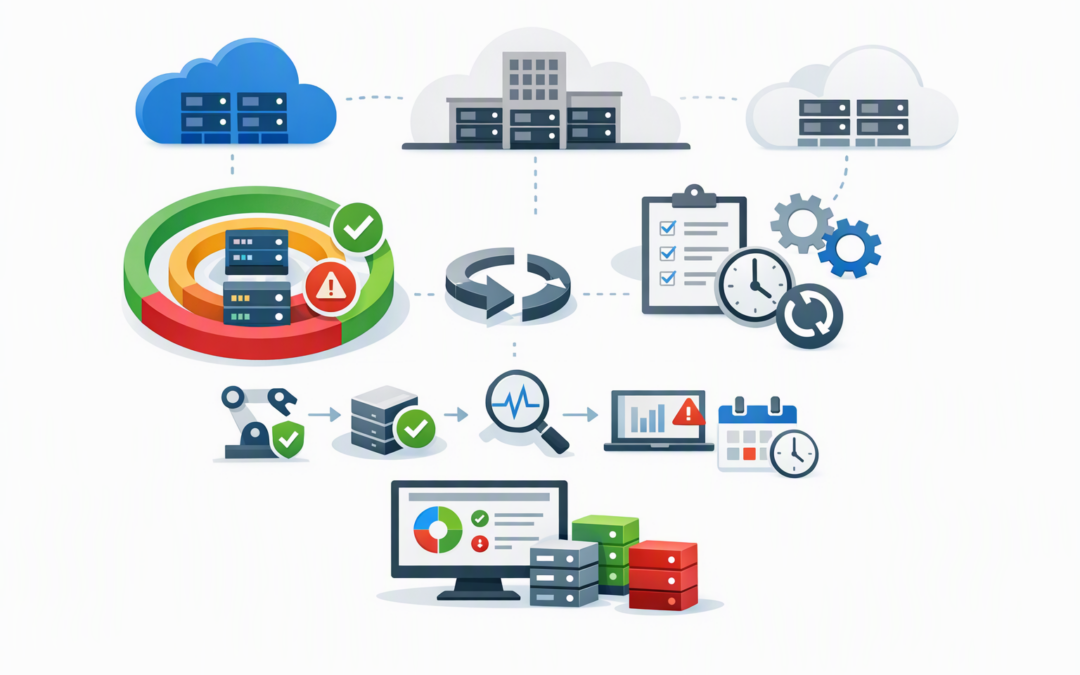
In this blog post Azure Update Manager Maintenance Orchestration Made Practical we will explain how to organise server updates without turning every patch cycle into a late-night troubleshooting exercise.
For many mid-market IT teams, the problem is not downloading updates. It is knowing which servers can be updated, when they can restart, what business services depend on them and whether everything came back online afterwards.
Azure Update Manager provides one place to assess and schedule operating system updates across Windows and Linux servers. It can cover virtual machines in Azure as well as on-premises or other cloud servers connected through Azure Arc, which links non-Azure machines to Azure’s management tools.
What maintenance orchestration actually means
Maintenance orchestration is the process surrounding the update itself. It determines which machines are included, what updates are approved, when installation begins, how restarts are handled and what happens before and after the maintenance window.
CPI Consulting helps organisations design, build and secure Azure AI solutions, from Azure OpenAI and Microsoft Foundry to agents, governance and production deployment.
Visit CPI ConsultingAzure Update Manager uses maintenance configurations to store these decisions. Think of a maintenance configuration as a reusable set of patching instructions rather than another server-by-server calendar reminder.
The service works with the update tools already built into Windows and Linux. It does not create or distribute patches itself; each server still obtains updates from its configured source, such as Microsoft Update, Windows Server Update Services or a Linux package repository.
Why manual patching becomes a business risk
A spreadsheet and a monthly checklist may be adequate when a business has six servers. They become unreliable when the environment grows to 40 or 60 machines spread across production, testing, disaster recovery and on-premises infrastructure.
Common problems include production servers being updated before testing, newly deployed machines being missed and updates being installed without enough time for a safe restart. The technical task may be completed, but the business is left with avoidable downtime and weak audit evidence.
This matters for organisations following the Essential Eight, the Australian government’s cybersecurity framework that many organisations use to reduce common cyber risks. Two of its strategies focus directly on patching applications and operating systems.
Azure Update Manager can provide evidence that operating system updates were assessed and deployed. However, it is not a complete Essential Eight solution because it does not replace application patching, vulnerability management or formal risk-based patching timeframes.
Build patch rings instead of one large maintenance window
The safest approach is to divide servers into patch rings. Each ring receives updates at a different time, allowing the IT team to find problems before they reach business-critical systems.
- Ring 0 — validation: Non-production servers used to confirm that updates install and applications still work.
- Ring 1 — low-risk production: Internal tools and services that can tolerate a short interruption.
- Ring 2 — core production: Customer-facing systems, finance platforms and other important workloads.
- Ring 3 — special handling: Systems requiring vendor approval, manual checks or coordinated maintenance.
For example, Ring 0 might update on Wednesday evening, Ring 1 on Saturday and Ring 2 on Sunday. This creates a useful gap for detecting issues without delaying important security updates indefinitely.
Use tags to decide which servers belong in each schedule
Azure tags are labels attached to cloud resources. They can describe a server’s environment, business owner, importance and patch ring in terms that both IT and management can understand.
Environment=Production
PatchRing=2
BusinessService=Finance
Criticality=High
MaintenanceWindow=Sunday-0200
Owner=Finance-IT
Azure Update Manager’s dynamic scope feature can automatically select machines based on details such as subscription, resource group, operating system, location and tags. The membership is checked when the schedule runs, so a correctly tagged new server can enter the appropriate patch cycle without someone editing a static list.
This is where broader Azure governance becomes important. If subscriptions, resource groups and tags are inconsistent, patch automation will also be inconsistent. Our guide to Azure Management Groups explains how to establish that structure across multiple subscriptions.
Design maintenance windows around business services
A maintenance window should be long enough for installation, restarts and verification. A one-hour window may look efficient on a calendar but can create failed or incomplete patching when a server has accumulated several large updates.
Do not group machines only by operating system. Two Windows servers may support completely different business processes and have very different outage limits.
Before creating a schedule, answer five questions:
- Which business service does this server support?
- Can it restart automatically?
- What other systems depend on it?
- How will the team confirm that the service is healthy?
- Who makes the decision if an update fails?
For Azure virtual machines using scheduled patching, Microsoft recommends customer-managed schedules. This setting allows your defined maintenance configuration to control when updates occur rather than leaving the timing to a separate automatic process.
Automate what happens before and after patching
Installing the update is often only one part of the job. Some servers must be started, placed into maintenance mode or removed from a load balancer before patching begins.
Azure Update Manager can use Azure Event Grid, which passes an event to another Azure service, to trigger pre-maintenance and post-maintenance actions. These actions can run through Azure Functions or Azure Automation runbooks, which are controlled scripts used for repeatable administration.
Useful pre-maintenance actions include:
- Starting a server that is normally switched off.
- Sending a maintenance notification.
- Checking that a recent backup exists.
- Pausing a business service safely.
- Removing an application server from active traffic.
Post-maintenance actions can restart services, perform health checks, return the server to active traffic and notify the IT team of the result.
One important detail is that a failed pre-maintenance task does not automatically cancel patching. Cancellation must be built into the workflow when a failed check should prevent the maintenance run from continuing.
Monitor outcomes rather than trusting the schedule
A green schedule does not necessarily mean the application is healthy. It may only mean that the operating system completed its update activity.
IT teams should review update compliance, installation failures and overdue machines after each cycle. They should also confirm that important business services are responding normally.
We recommend reporting a small set of business-friendly measures:
- Percentage of servers assessed for updates.
- Percentage compliant with the agreed patching timeframe.
- Number of failed or missed maintenance runs.
- Number of critical updates outside the required timeframe.
- Business services affected by patch-related incidents.
This reporting is far more useful to executives and auditors than a list of individual update identifiers.
A practical mid-market scenario
Consider an illustrative 180-person organisation with 45 servers across Azure and an on-premises office. Its small IT team patches production monthly, but the process depends on a spreadsheet and several calendar reminders.
The team creates three patch rings and connects the on-premises servers through Azure Arc. Dynamic scopes use tags to place each machine into the correct maintenance configuration, while pre-maintenance actions check backups and send notifications.
The immediate benefit is not simply fewer manual clicks. The business gains a repeatable process, clearer evidence for security reviews and a lower chance of every critical server restarting during the same maintenance window.
What Azure Update Manager does not replace
Azure Update Manager focuses mainly on server operating system updates. It should not be treated as a universal patching product for every third-party business application, network device or employee laptop.
For managed Windows endpoints, Microsoft Intune, which manages and secures company devices, may be the more appropriate tool. Our guide to streamlining Visual Studio updates with Microsoft Intune shows how application update governance can extend beyond servers.
You should also check operating system support, update-source settings and Azure Arc costs before onboarding non-Azure machines. Existing Microsoft Defender for Servers arrangements may affect which Azure Update Manager charges apply.
Start with a controlled pilot
Begin with a small group of non-production servers. Confirm assessment, update installation, restart behaviour, reporting and service validation before adding production workloads.
CloudProInc brings more than 20 years of enterprise IT experience to this type of work. As a Melbourne-based Microsoft Partner and Wiz Security Integrator, we help organisations connect Azure operations with practical security, compliance and cost controls without introducing unnecessary complexity.
If you are not sure whether your current patching process would stand up to an outage review or Essential Eight assessment, we are happy to take a practical look at it — no strings attached.