
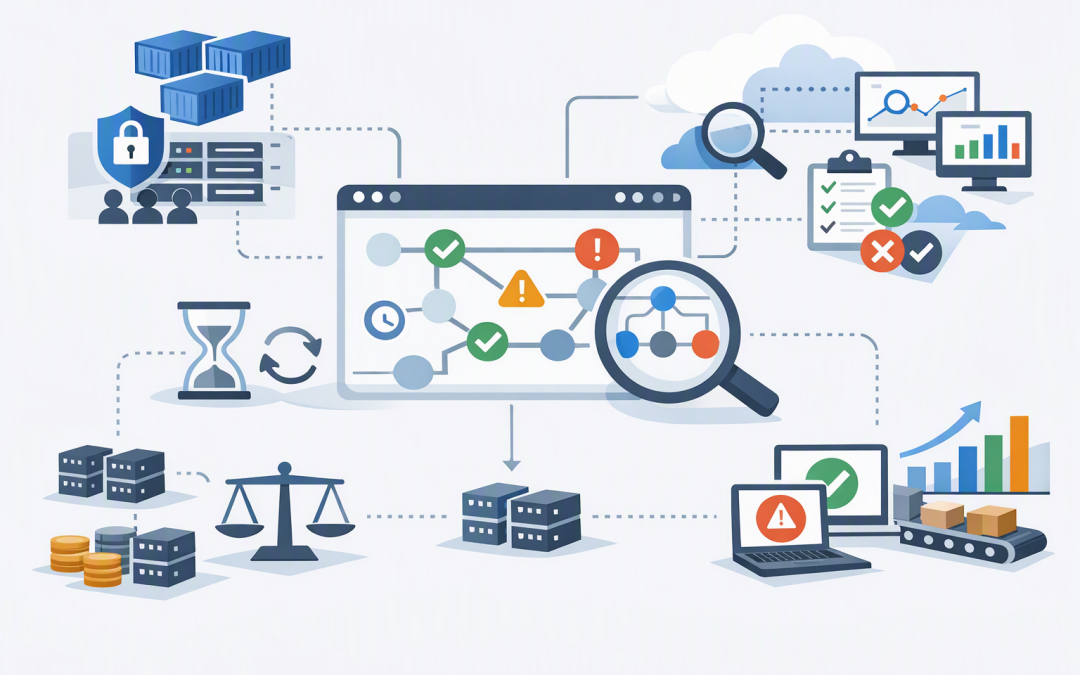
In this blog post How to Operate Azure Application Platforms With Fewer Costly Blind Spots we will explain how to gain clearer operational control over Azure applications, from securely accessing containers through to monitoring long-running Durable Task workflows.
The common problem is not a complete lack of monitoring. It is having disconnected pieces of information. Your team can see that a container is running, but not why an order is stuck, which workflow step failed, whether a new deployment caused the issue or who accessed the production environment.
Azure Container Apps provides a managed platform for running containerised applications without operating the underlying servers. Durable Task adds reliable workflow execution, allowing a multi-step business process to remember its progress, recover from interruptions and continue from its last successful step rather than starting again.
Why healthy containers can still hide unhealthy services
A container can be online while the business service behind it is effectively unavailable. It may be returning errors, waiting indefinitely for another system or repeatedly retrying an operation that will never succeed.
This is especially important for applications that process customer onboarding, document approvals, billing, AI requests or infrastructure changes. These services often involve several systems and may run for minutes, hours or even days.
The operational question should therefore move beyond “Is the container running?” to “Can the complete business process finish successfully, securely and within an acceptable time?”
1. Control container access instead of sharing broad permissions
Azure Container Apps allows authorised administrators to open a console inside a running container. This is useful when logs do not provide enough information and an engineer needs to inspect the application directly.
For example, the following Azure command opens a controlled console session:
az containerapp exec \
 --name customer-api \
 --resource-group production-apps
This capability is helpful, but it should be treated like privileged access to a production server. It should not become the normal way to operate the application, and it should never be available to everyone who has general access to the Azure subscription.
Use role-based access control, which limits each person to the permissions required for their job. Separate those who can view monitoring data from those who can change deployments, read secrets or open a production console.
This supports the intent of Essential 8, the Australian government’s cybersecurity baseline, particularly its focus on restricting administrative privileges. It reduces the chance of accidental changes and makes investigations easier when something goes wrong.
2. Bring application, platform and workflow monitoring together
Container logs only show what the application writes to its standard output. They do not automatically explain a failed deployment, traffic-routing problem, unhealthy replica or stalled workflow.
A useful operating view combines several information sources:
- Application logs explain what the application was attempting to do.
- Platform logs show events such as failed image downloads, container crashes, revision changes and volume problems.
- HTTP logs show incoming requests, response codes and traffic patterns.
- Distributed tracing follows one request as it moves between containers, databases, APIs and workflow steps.
- Business measures show completed orders, processed documents or successful onboarding cases.
Azure Container Apps can send console, system and HTTP information to Azure Monitor. Application Insights, Microsoft’s application monitoring service, can then help connect errors and performance data across the service.
The business outcome is faster incident response. Instead of several people spending hours checking separate systems, the support team can follow one transaction and see where it stopped.
3. Treat every revision as a measurable business change
Azure Container Apps creates revisions, which are fixed versions of your application and its configuration. This makes it possible to run the existing version beside a new version and gradually move traffic across.
However, revisions create another potential blind spot. An old revision may remain active, a new version may be receiving only part of the traffic, or different users may be reaching different application versions.
For every production deployment, record:
- Which revision was released and who approved it.
- What percentage of traffic it receives.
- Whether startup, readiness and liveness checks are passing.
- How its error rate and response time compare with the previous revision.
- What conditions will trigger an automatic or manual rollback.
Health checks confirm whether an application has started, remains responsive and is ready to receive customer traffic. Traffic splitting then allows a small percentage of requests to reach the new revision before a full rollout.
This lowers deployment risk. A faulty update can be identified while it affects a small number of requests rather than the entire business.
4. Use Durable Task visibility for long-running processes
Durable Task is designed for processes that must survive restarts, temporary outages and long waiting periods. The application defines the workflow in code, while the Durable Task Scheduler records completed steps and coordinates what should happen next.
The scheduler is separate from the application’s computing resources. Workers can run on Azure Container Apps, Azure Functions, Azure Kubernetes Service, App Service or virtual machines while connecting to the same managed workflow service.
This separation is useful, but operations teams now need to watch both sides. A container may be healthy while a workflow is paused, repeatedly failing or waiting for an external event.
The Durable Task Scheduler dashboard provides a workflow-level view. Authorised users can inspect execution history, review activity inputs and outputs, and pause, resume or terminate individual workflow instances. Application Insights adds performance data and traces across the surrounding application.
Be careful with the information recorded in workflow histories. Customer details, prompts, documents and access tokens should not be written into logs or workflow inputs unless there is a clear requirement and suitable protection.
5. Match compute spending to each workflow step
Not every part of a workflow needs the same computing power. A coordination step may use very little processing, while document conversion, data analysis or an AI activity may require substantially more memory.
Durable Task work-item filtering can direct different activities to workers designed for that task. Lightweight steps can run on smaller resources, while demanding activities use larger workers that scale only when required.
Azure Container Apps can also increase or reduce the number of running copies based on Durable Task work waiting to be processed. Applications can scale to zero when idle, although this introduces a short startup delay when the next request arrives.
The goal is not simply to minimise the Azure bill. It is to avoid paying for idle capacity without creating delays that frustrate customers or employees. Our guide to reducing Azure infrastructure costs without hurting performance covers the wider cost controls that should sit around this approach.
A practical example of the blind spot
Consider a 200-person professional services business with an automated customer-onboarding platform. One container accepts the request, another checks documents, an AI service prepares a summary, a manager approves the case and a final activity updates the finance system.
The containers all appear healthy, yet some customers wait several hours. The real problem is a finance-system activity that keeps retrying after its authentication details expire.
Container monitoring alone shows no obvious outage. A connected operational view reveals the failed workflow step, affected customers, retry count and deployment that introduced the configuration change.
The team can then stop unnecessary retries, restore the correct identity configuration and resume the affected workflows. The outcome is less support effort, fewer duplicated transactions and a faster customer experience.
A sensible operating baseline
- Restrict production console access and review permissions regularly.
- Use managed identities, which let applications authenticate without passwords stored in code.
- Send application, platform and HTTP logs to a central monitoring workspace.
- Add transaction identifiers so one business request can be followed across services.
- Monitor workflow failures, duration, retry volume and backlog.
- Set alerts around customer impact rather than infrastructure activity alone.
- Test deployment rollback and workflow recovery before an incident.
- Use Microsoft Defender and Wiz to identify vulnerable images, exposed services and excessive permissions.
If you are developing agent-based services, these controls also extend the production practices discussed in our guide to building production-ready .NET A2A agents on Azure Container Apps.
Fewer blind spots mean better business decisions
Operating an Azure application platform well requires more than checking whether containers are online. You need controlled access, connected monitoring, safe deployment practices, workflow visibility and scaling rules tied to real demand.
CloudProInc brings more than 20 years of enterprise IT experience across Azure, Microsoft 365, Defender, Wiz and modern AI platforms. As a Microsoft Partner and Wiz Security Integrator, we help organisations build practical operating controls without turning their environment into an expensive management project.
If you are not sure whether your Azure applications are genuinely observable or simply producing more logs, we are happy to take a practical look at the gaps — no strings attached.