
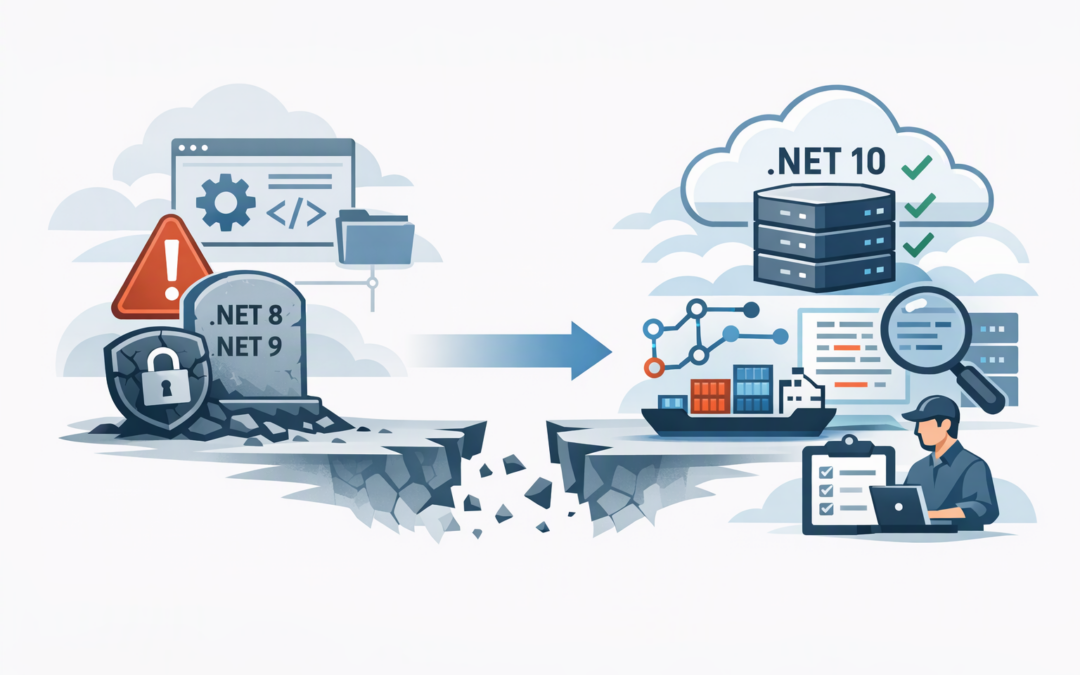
In this blog post Static Web Apps .NET 8 and 9 Retirement Remediation Checklist we will explain what the retirement means, how to identify affected applications and how to move them forward without creating unnecessary business disruption.
The immediate problem is not that every application will suddenly stop working. The bigger risk is continuing to run business software on an unsupported platform that no longer receives normal security fixes or dependable vendor support. Microsoft lists 10 November 2026 as the end-of-support date for .NET 8 and .NET 9 runtimes used by Azure Static Web Apps.
What is Azure Static Web Apps?
Azure Static Web Apps is a Microsoft cloud service for hosting websites and browser-based business applications. It can automatically build and publish an application whenever approved code is added to GitHub or Azure DevOps.
The visible part of the application, such as a customer portal or internal dashboard, is distributed through Azure for fast access. The application can also include an API, which is the background service that retrieves records, processes forms and connects the website to databases or other business systems.
CPI Consulting helps organisations design, build and secure Azure AI solutions, from Azure OpenAI and Microsoft Foundry to agents, governance and production deployment.
Visit CPI ConsultingThese APIs are commonly powered by Azure Functions, which runs small pieces of code only when they are needed. Microsoft can manage these functions inside Static Web Apps, or the organisation can connect a separate Azure Functions service for greater control.
.NET may therefore appear in two places. A Blazor WebAssembly front end may target .NET 8 or 9, while the API behind the application may also run on one of those versions. Both must be checked.
Why the retirement matters to the business
An unsupported application may continue operating for a while, but that does not make it safe. New security weaknesses may remain unpatched, Microsoft support options become limited, and a later deployment or dependency update may introduce failures at the worst possible time.
This also creates a compliance problem. The Essential Eight, the Australian Government’s cybersecurity framework that many organisations use as a security baseline, expects businesses to patch applications promptly. It becomes difficult to demonstrate effective patching when the underlying software platform is no longer supported.
The lesson is similar to the broader issues covered in our guide to planning for Azure retirements before they disrupt operations. Finding dependencies early is usually cheaper than arranging an emergency upgrade after a failed release.
The practical remediation checklist
1. Build a complete application inventory
Start with the Azure subscriptions, repositories and deployment pipelines connected to Static Web Apps. Do not rely solely on a spreadsheet or the memory of one developer.
- List every Azure Static Web Apps resource across production, test and development subscriptions.
- Record the business owner, technical owner, repository and deployment pipeline.
- Identify whether the application uses Blazor, a managed API or a separately linked backend.
- Record whether it handles personal, financial, customer or operational data.
- Confirm whether the application is still used and whether it has a tested recovery plan.
Prioritise applications by business impact rather than technical complexity. A small portal used for customer orders deserves attention before a larger internal demonstration site.
2. Confirm where .NET 8 or 9 is used
Search each repository for project files ending in .csproj. The TargetFramework setting shows the .NET version the project expects.
<PropertyGroup>
 <TargetFramework>net8.0</TargetFramework>
</PropertyGroup>
Next, inspect staticwebapp.config.json. A managed .NET API may contain a runtime setting similar to this:
{
 "platform": {
 "apiRuntime": "dotnet-isolated:8.0"
 }
}
Also review the GitHub Actions or Azure DevOps workflow. Confirm which folders are configured as the front end, API and build output locations. This avoids upgrading the obvious project while overlooking another API in the same repository.
3. Choose the right target architecture
For most affected applications, the preferred destination is .NET 10, Microsoft’s current Long-Term Support release. It provides a longer support window than moving between short-lived versions.
There is one important complication. .NET 10 APIs in Azure Static Web Apps use the isolated worker model, which runs the application code separately from the Azure Functions host. In plain English, this separation makes it easier for Microsoft to update the hosting service without tightly coupling it to your application.
If an API already uses dotnet-isolated:8.0 or dotnet-isolated:9.0, the move should be more direct. If it uses dotnet:8.0, it is running in-process and needs a more deliberate conversion to the isolated model.
Applications with complex background jobs, private networking, managed identities or unusual integrations may be better served by a separately managed Azure Functions app, App Service or Container App. This is a design decision, not just a version-number change.
4. Upgrade the code in a separate branch
Create a dedicated upgrade branch rather than experimenting in production. Update the front-end and API project files to target .NET 10, then update the managed API runtime where applicable.
<PropertyGroup>
 <TargetFramework>net10.0</TargetFramework>
 <AzureFunctionsVersion>v4</AzureFunctionsVersion>
 <OutputType>Exe</OutputType>
</PropertyGroup>
{
"platform": {
"apiRuntime": "dotnet-isolated:10.0"
}
}These changes are only the starting point. Update the relevant Microsoft function packages, authentication libraries and other dependencies, then resolve warnings rather than simply forcing the build through.
Teams should also check global.json, container images and build agents for references to older .NET software development kits. A project can work on a developer’s laptop and still fail because the automated deployment pipeline is using an outdated build environment.
5. Test the business journey, not only the build
A successful build proves that the code compiled. It does not prove that customers can sign in, submit a request or complete a transaction.
- Test sign-in, sign-out, permissions and Microsoft Entra ID integration.
- Confirm every important API route returns the expected information.
- Test file uploads, email notifications and third-party integrations.
- Check configuration values and secrets in each environment.
- Verify error handling, application logs and security monitoring.
- Test on the browsers and devices employees or customers actually use.
- Run dependency and vulnerability scans before approving production release.
Azure Static Web Apps can create a preview environment from a pull request. Use it to let business users test the upgraded application before it replaces production.
6. Plan deployment and rollback
Schedule the release around business impact, not developer availability. Name the person authorised to make the final decision, communicate the maintenance window and define exactly what will trigger a rollback.
Retain the previous release artefact and configuration long enough to recover safely. After deployment, monitor failed requests, response times, sign-in failures and API errors rather than waiting for users to report problems.
7. Record the evidence
Keep evidence of the approved change, test results, dependency scan, production deployment and post-release review. This gives technology leaders a clear record for governance, cyber insurance and Essential Eight assessments.
It also prevents the same problem returning. Add runtime versions and support dates to the technology register, with alerts at least six and twelve months before the next deadline.
A common scenario
Consider a 180-person professional services company with a Blazor client portal and a managed Azure Functions API. The portal appears simple, but it handles document uploads, customer records and automated emails.
The team changes net8.0 to net10.0 and assumes the work is complete. The build then fails because the API still uses the in-process model, while a later test reveals that an older authentication package is also incompatible.
By identifying those dependencies in a preview environment, the company avoids a failed production release and an urgent after-hours recovery. The business outcome is not merely a newer platform. It is lower security exposure, predictable support and less chance of customer-facing downtime.
Do not turn every retirement into a full rewrite
Most Static Web Apps do not need to be rebuilt from scratch. A controlled runtime and dependency upgrade is usually faster and less expensive.
However, retirement work can expose applications that have already become costly or difficult to support. Our article on why Australian SMBs should modernise old .NET applications explains how to recognise that wider risk.
If the application depends on older Windows components that cannot fit a modern Static Web Apps architecture, consider a staged hosting move instead of an immediate rewrite. The assessment approach in our legacy application assessment guide can help clarify the available options.
What technology leaders should do now
Ask for a list of affected applications, named owners, target platforms, test plans and confirmed production dates. If your internal team or IT provider cannot produce that information, the first priority is visibility.
CloudProInc combines more than 20 years of enterprise IT experience with practical Azure and Microsoft development expertise. As a Melbourne-based Microsoft Partner and Wiz Security Integrator, we help organisations across Australia and internationally assess application risk, remediate unsupported platforms and verify the security of the result.
If you are not sure whether a Static Web App is still using .NET 8 or 9, or whether the proposed upgrade plan covers the real business risks, we are happy to take a practical look with you — no strings attached.