
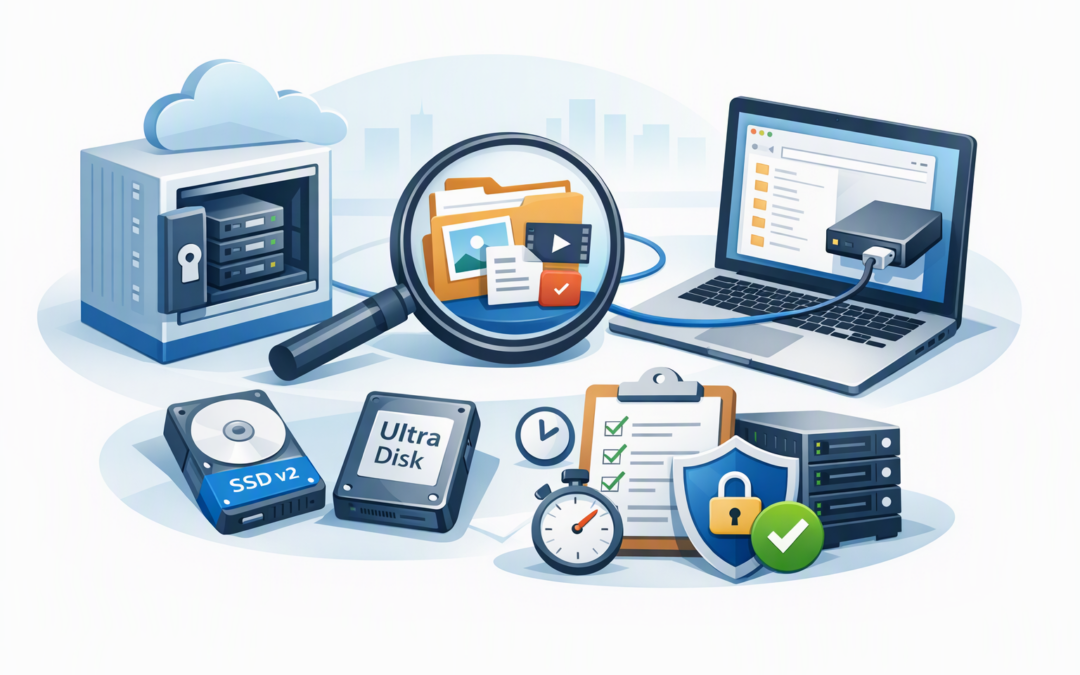
In this blog post Azure Backup Recovery Checklist for Premium SSD v2 and Ultra Disks we will explain how to confirm that individual files can be recovered quickly, securely and with evidence your business can trust.
The problem is familiar: the Azure dashboard shows successful backups, but nobody knows whether one deleted file can be restored without rebuilding an entire server. That uncertainty matters when payroll data, customer records or operational files suddenly disappear.
Azure Backup now supports item-level recovery for virtual machines using Premium SSD v2 and Ultra Disks. Item-level recovery means restoring selected files or folders from a backup instead of recovering a complete virtual machine or disk.
This can reduce downtime and recovery effort significantly. However, support on a Microsoft feature page does not automatically mean every workload in your environment is ready to recover.
CPI Consulting helps organisations design, build and secure Azure AI solutions, from Azure OpenAI and Microsoft Foundry to agents, governance and production deployment.
Visit CPI ConsultingHow the recovery technology works
Azure Backup creates recovery points for an Azure virtual machine and stores protected backup data in a Recovery Services vault. A Recovery Services vault is the secure Azure service that holds and manages virtual machine backups.
During item-level recovery, an authorised administrator selects a recovery point and downloads a temporary recovery script. The script connects the selected backup to a recovery computer as a browsable drive, allowing the administrator to copy out the required files.
This avoids restoring a complete server simply to retrieve a spreadsheet or configuration file. Once the files have been copied and checked, the administrator disconnects the recovery point and closes the temporary connection.
Premium SSD v2 and Ultra Disks are high-performance Azure storage options commonly used for databases and systems that process large volumes of transactions. Azure Backup supports item-level recovery from both 512-byte and 4-KB logical sector formats, including virtual machines with a mixture of supported disk types.
Our earlier Premium SSD v2 recovery checklist focused on that disk type. The checklist below extends the approach across both Premium SSD v2 and Ultra Disk workloads.
The practical recoverability checklist
1. Confirm which systems use these disks
Start with an inventory of every virtual machine using Premium SSD v2 or Ultra Disks. Record the business owner, application, operating system, disk type, data location and expected recovery time.
This turns a storage report into a business priority list. A reporting server that can be unavailable for a day should not receive the same recovery design as a warehouse system that stops dispatch operations after 30 minutes.
- Identify all Premium SSD v2 and Ultra Disks.
- Map each disk to its virtual machine and business service.
- Record whether the disk contains an operating system, application or business data.
- Assign a recovery time and acceptable data-loss target.
2. Check that the correct backup policy is in place
Premium SSD v2 and Ultra Disk virtual machines require an Enhanced Azure VM backup policy. Enhanced policy is the newer Azure Backup policy that supports these disk types, multiple backups per day and longer local snapshot retention.
Do not assume a virtual machine is protected because it appears in a vault. Check that protection is active, recent jobs have completed successfully and every required disk is included.
Also review backup frequency against business needs. A daily backup could mean losing almost a full day of work, even when the restore itself runs perfectly.
3. Confirm that the workload is eligible for item-level recovery
Item-level recovery supports Windows and several common Linux distributions, including Ubuntu, Red Hat Enterprise Linux, Debian, Oracle Linux, SUSE Linux Enterprise Server and openSUSE. Eligibility can still depend on the file system, volume layout and encryption configuration.
Certain encrypted virtual machine backup configurations do not support file recovery through the standard mounting process. If encryption prevents item-level recovery, document an alternative such as restoring a disk and attaching it to an isolated recovery machine.
Unsupported or unusual disk arrangements should never be discovered during an incident. Test them now and record the approved fallback method.
4. Prepare a dedicated recovery computer
The recovery script needs a suitable Windows or Linux computer with administrator access and enough free storage for the recovered files. It should also be able to read the file system used by the protected server.
Network controls must permit the temporary Azure recovery connection. This normally includes secure web traffic and iSCSI, which is the storage connection used to present backup volumes to the recovery computer, over outbound port 3260.
Firewalls, endpoint security tools and restrictive network rules can block this process even while backups continue to report as successful. Include the recovery computer in firewall reviews and security testing rather than requesting emergency access during an outage.
5. Use item-level recovery for the right amount of data
Item-level recovery is designed for targeted restores, not bulk recovery. Microsoft recommends using it when the total amount being recovered is 10 GB or less, with expected transfer speeds around 1 GB per hour.
If an entire 500 GB data volume has been corrupted, restoring individual folders is unlikely to meet the business recovery target. A full disk or virtual machine restore will usually be more appropriate.
This decision should be written into the recovery plan:
- Use item-level recovery for a small number of files or folders.
- Use disk recovery for large data sets or complex file structures.
- Use full virtual machine recovery when the operating system or complete application stack is affected.
For more detail on choosing the right method, see rethinking Azure Backup recovery for Premium SSD v2 and Ultra Disks.
6. Test the complete recovery path
A backup test should prove more than the ability to download and run a script. Select a known file, recover it to a safe location, open it and ask the application owner to confirm that it is usable.
Record how long each stage takes, including obtaining approval, preparing the recovery computer, connecting the recovery point, finding the file and validating the result. The temporary recovery script is time-limited, so the team should be able to complete the procedure without improvising.
This testing also supports the Essential Eight, the Australian Government’s cybersecurity framework that many organisations use to reduce risk. Its regular backups strategy expects organisations to protect important information and test restoration as part of disaster recovery exercises.
7. Protect recovery permissions
Anyone who can restore backup data may be able to access sensitive company information. Recovery permissions should therefore be limited to approved administrators and reviewed regularly.
Use separate administrative accounts, multi-factor authentication and Azure role-based access controls, which limit what each account is allowed to do. Alerts should also be configured for unusual backup changes, vault deletion attempts and restore activity.
This reduces the risk of an attacker or disgruntled employee using legitimate recovery tools to extract confidential information.
8. Keep evidence for management and auditors
For each test, retain the recovery point used, files restored, elapsed time, participants, validation result and any problems found. Assign each failed step to an owner with a target completion date.
A green dashboard only proves that a backup job ran. Evidence of a completed and validated restore proves that the business can recover. Our guide to turning Azure Backup inventory into recovery decisions explains how to present this information to leadership.
What this looks like in practice
Consider a 200-person company whose finance application runs on an Azure virtual machine with an Ultra Disk. A user accidentally deletes a folder containing month-end reporting files two hours before a board deadline.
If item-level recovery has not been tested, the IT team may begin a full disk restore, create temporary infrastructure and spend hours locating the data. The technical recovery could also interrupt the live finance system.
With a tested process, the team selects the correct recovery point, mounts it on an approved recovery computer, copies the folder and asks finance to validate the files. The business outcome is not simply a successful Azure task; it is meeting the reporting deadline without taking the finance system offline.
The final question is whether you can prove recovery
Support for Premium SSD v2 and Ultra Disk item-level recovery closes an important gap, but it does not replace planning. Policy type, operating system, encryption, network access, permissions and data volume can all determine whether a restore succeeds.
CloudProInc combines more than 20 years of enterprise IT experience with practical Azure and cybersecurity expertise. As a Microsoft Partner and Wiz Security Integrator, our Melbourne-based team helps organisations across Australia test recovery paths, reduce unnecessary restore time and build evidence for management and Essential Eight reviews.
If you are not sure whether your current Azure backups can recover the files your business actually depends on, we are happy to take a practical look with you — no strings attached.