
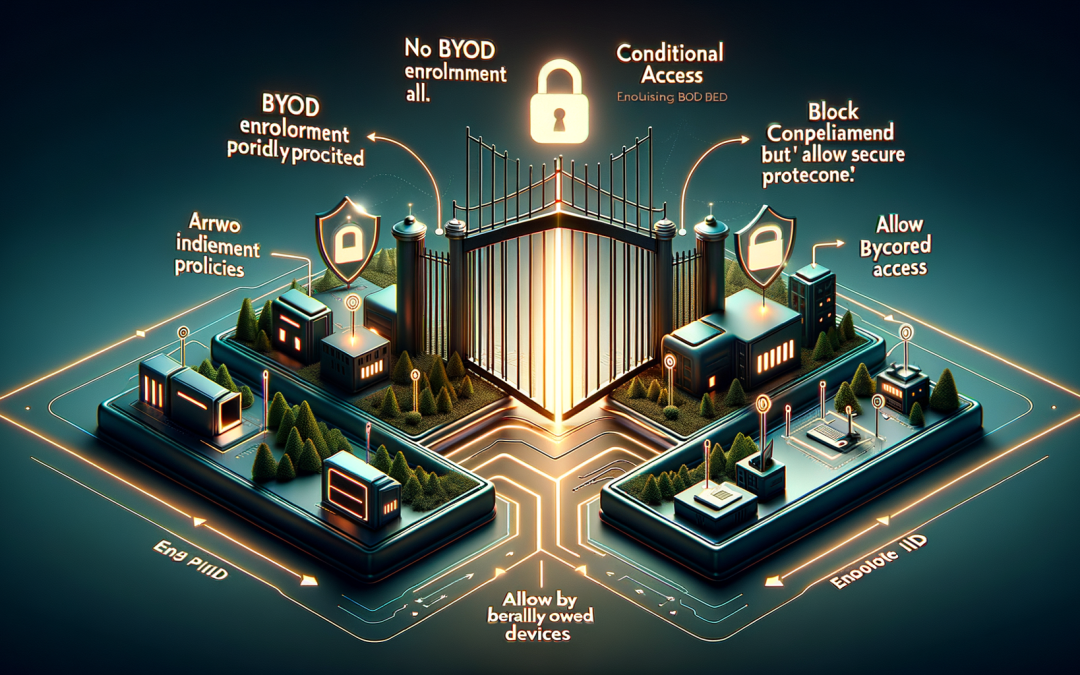
In this blog post Block Personally Owned Devices with Microsoft Intune for Better Security we will explain how to stop personally owned devices (BYOD) from enrolling into Intune, why it matters, and how to do it safely without breaking legitimate business workflows.
At a high level, “blocking personal devices” is about ensuring that only devices your organisation trusts (usually corporate-owned and properly provisioned) can be managed by Intune. You’re reducing risk: less unmanaged data sprawl, fewer unknown endpoints, and more predictable compliance.
Before we get into the steps, it helps to clarify what you’re really controlling. Intune isn’t just a mobile device manager; it’s a policy engine that decides who can enroll what device, under which conditions, and then continually evaluates compliance. Blocking personal devices is mainly enforced at the enrollment boundary, then supported by identity and access controls.
What technology is behind blocking personal devices
The main technology here is Microsoft Intune enrollment controls, backed by Entra ID (Azure AD) identity. When a user attempts to enroll a device, Intune evaluates platform-specific enrollment policies and device metadata to decide whether the device can be managed. From there, compliance policies and Conditional Access (in Entra ID) can enforce what enrolled (and sometimes even unenrolled) devices can access.
CPI Consulting helps organisations design, build and secure Azure AI solutions, from Azure OpenAI and Microsoft Foundry to agents, governance and production deployment.
Visit CPI Consulting- Enrollment restrictions (Intune): Define whether a platform can enroll and whether personal devices are allowed.
- Device ownership (Corporate vs Personal): Used by policies and reporting. Many controls are based on this attribute.
- Corporate device identifiers: A way to “prove” a device is corporate-owned so it can enroll even when personal enrollment is blocked.
- Conditional Access (Entra ID): Controls access to apps based on device state (compliant, hybrid joined, etc.). Not the same as enrollment blocking, but a crucial companion.
Why block BYOD enrollment
Blocking personally owned devices is common when you need tighter governance, such as:
- Regulated environments (finance, health, government).
- Preventing accidental corporate data exposure on family or shared devices.
- Reducing support load from unpredictable device configurations.
- Standardising security baselines (BitLocker, Defender, patching, etc.).
It’s also a cultural decision. Some organisations still allow personal devices to access corporate apps via app protection (MAM) while blocking full device enrollment (MDM). You can do both, but be deliberate about the user experience.
Decide what “blocked” really means in your environment
Before changing anything, decide which of these models you’re aiming for:
- No BYOD at all: Users must use corporate devices only.
- Block BYOD enrollment, allow secure app access: Personal phones can access Outlook/Teams using app protection policies, but cannot enroll the device.
- Allow BYOD for mobile only: Block personal Windows/macOS enrollment, but allow iOS/Android enrollment.
Implementation plan (safe and practical)
Step 1: Create a pilot group
Start with a controlled Entra ID group (for example, Intune-Enrollment-Pilot) to validate behaviour without impacting everyone.
- Include a few IT staff and power users.
- Test at least one device per platform you support.
Step 2: Inventory what you already have
Blocking personal enrollment is easiest when you know which devices are corporate and which are not.
- Review existing Intune devices and their ownership value.
- Check how you currently provision corporate devices (Autopilot, Apple Business Manager, Android Enterprise, etc.).
- Identify any legitimate business scenarios currently relying on BYOD enrollment.
Step 3: Configure enrollment device platform restrictions
This is the main Intune control for blocking personally owned devices at enrollment time.
- Go to Intune admin center → Devices → Enrollment → Enrollment device platform restrictions.
- Create a new restriction (or edit an existing targeted policy) and assign it to your pilot group.
- For each platform (Windows, iOS/iPadOS, Android, macOS):
- Set Personally owned devices to Block (or equivalent option where available).
- Keep Corporate-owned devices allowed.
Tip: Intune processes restrictions by priority. Make sure your pilot policy has a higher priority than a broad “allow all” policy, otherwise you’ll think it’s broken when it’s just being overridden.
Step 4: Make corporate ownership provable (so good devices still enroll)
When you block personal enrollment, you must ensure corporate devices are correctly identified, otherwise you’ll accidentally block your own fleet.
- Windows: Use Windows Autopilot for corporate provisioning. Autopilot-registered devices are treated as corporate in many scenarios and support controlled enrollment.
- Apple: Use Apple Business Manager with Automated Device Enrollment. This clearly marks devices as organisation-owned and streamlines enrollment.
- Android: Use Android Enterprise corporate-owned modes (Fully Managed, Dedicated, or Corporate-Owned Work Profile).
- Manual identifiers: For some platforms, you can upload corporate device identifiers (like serial numbers or IMEIs) so Intune recognises them as corporate-owned.
Step 5: Align Conditional Access so access matches your new rules
Even with enrollment blocked, users might still access resources from unmanaged devices unless you enforce access conditions. This is where Conditional Access complements Intune.
- Require compliant device for key cloud apps (Exchange Online, SharePoint, Teams, admin portals).
- Consider separate policies for:
- Admins (stricter: compliant + phishing-resistant MFA).
- General users (compliant or approved app with app protection).
If you still want personal mobiles to access email, a common approach is: block device enrollment but allow mobile access via approved apps + app protection policies. That way the data is protected without fully managing the device.
Step 6: Communicate the change (and reduce support tickets)
Most problems with this change are human, not technical. Provide a simple internal message:
- What’s changing (personal device enrollment will be blocked).
- When it’s changing.
- What users should do (use a corporate device, or use approved apps under app protection).
- How to request an exception (if you allow them).
Common gotchas (and how to avoid them)
Your “corporate” devices show as personal
This usually means the device didn’t come through the right provisioning channel (Autopilot/ABM/Android Enterprise) or identifiers weren’t uploaded. Fix ownership signals first, then enforce blocks.
Priority conflicts between restriction policies
If multiple restriction policies apply to a user, the highest priority wins. Keep your rule set simple and document why each policy exists.
Developers and test devices
Dev teams often use personal test phones. Decide whether you’ll support:
- Dedicated corporate test devices managed by Intune, or
- App-based access with MAM, or
- A tightly controlled exception group with time-bound approvals.
Quick validation checklist
- A known personal device cannot enroll (expected failure).
- A corporate-provisioned device can enroll successfully.
- Conditional Access blocks access from unmanaged devices where required.
- Helpdesk has a clear runbook for “enrollment blocked” cases.
Final thoughts
Blocking personally owned devices with Intune is one of the cleanest ways to tighten endpoint security and reduce operational noise. The trick is doing it without accidentally locking out legitimate corporate devices or driving users to risky workarounds. Start with a pilot, make corporate ownership unambiguous, pair enrollment controls with Conditional Access, and communicate clearly—then roll it out with confidence.
If you’re planning this change across a mixed fleet (Windows, macOS, iOS, Android) and want a quick design review, CloudProinc can help you map the right enrollment model for your risk profile and user experience goals.